
How To Create a Payment Request
You may wish to ask for payment at booking time under certain criteria. For example, you may wish to:
- Require a deposit for an Afternoon Tea booking.
- Require full prepayment for a Guest Chef Experience or other event.
- Offer the option of prepaying for 'upsell' items e.g. a bottle of champagne, wine pairing.
Before starting, please ensure that you have configured Payment Items.
To create a Payment Request, please complete the following steps:
- 1
- Click on the TablePath logo in the top left.

- 2
- Click on Configure at the bottom left hand side of the page.

PLEASE NOTE: if you're unable to see the 'Configure' link, please see the following: https://help.tablepath.com/article/320-configure-link-missing
- 3
- Click on Payments.

Quick Link: To go directly to the 'Payments' page, please click here:
- 4
- Click '+ Add New Payment Setting'.
- 5
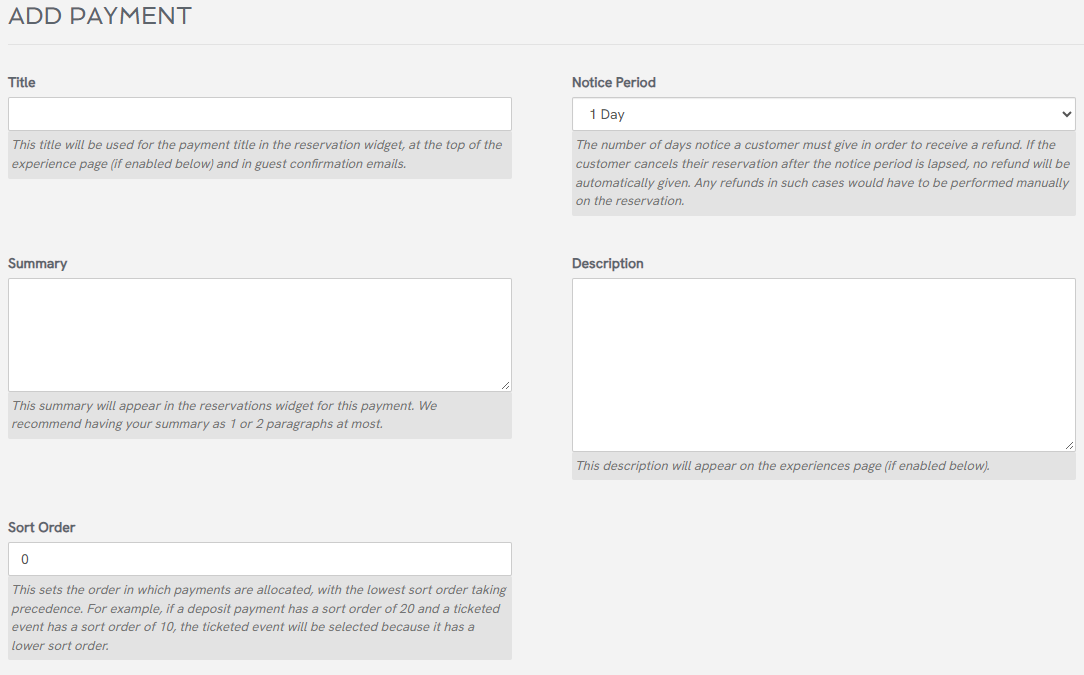
- Complete the basic Payment details. The Summary will appear in the Reservation Widget to inform guests of the pre-payment requirement. The Description will appear if the payment is related to an Experience and can be more verbose. If the customer cancels their reservation after the notice period is lapsed, no refund will be automatically given. Any refunds in such cases would have to be performed manually in your Stripe account.
- 6
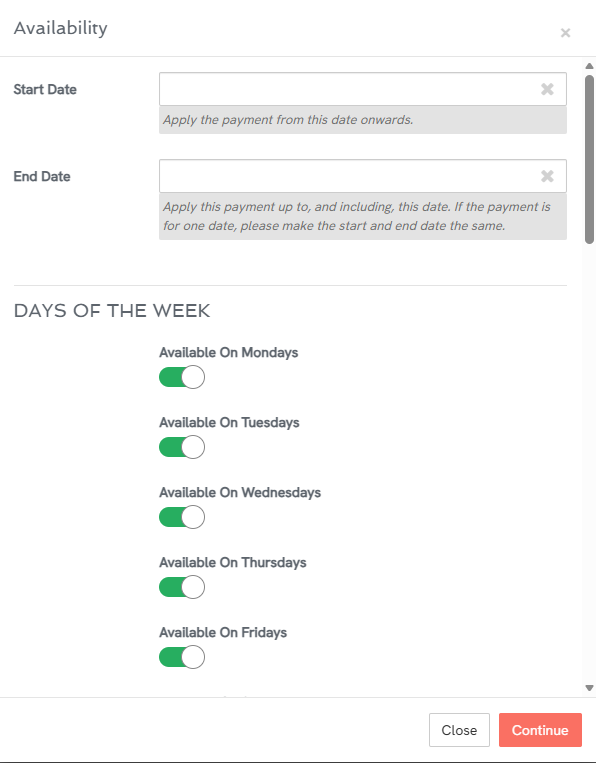
- Next set the 'Applies To' criteria. This is the rule set that determines if the Payment is required for the booking. Multiple rules may be set to cover different scenarios. Click Add Availability
The Availability dialog box appears where you can set the following:
- Date range
- Days of the Week
- Time range
- Rooms
- Shifts
- Guest Count
- Guest type (Resident or Non-resident)
- Active Status
For example: You may want a booking deposit to apply for:
- Dinner in the Restaurant (Room and Shift)
- Friday and Saturday (Days of the Week)
- Between 6 and 8pm (Time range)
- For 4 or more non-residents (Guest Count and Guest Type)
- 7
- Next select the Payment Items (Mandatory and/or Optional) that apply to this payment.
If Required Items are added here, the guest must select at least one in order to complete their booking. Furthermore, they must select enough to cover the number of guests in their booking.
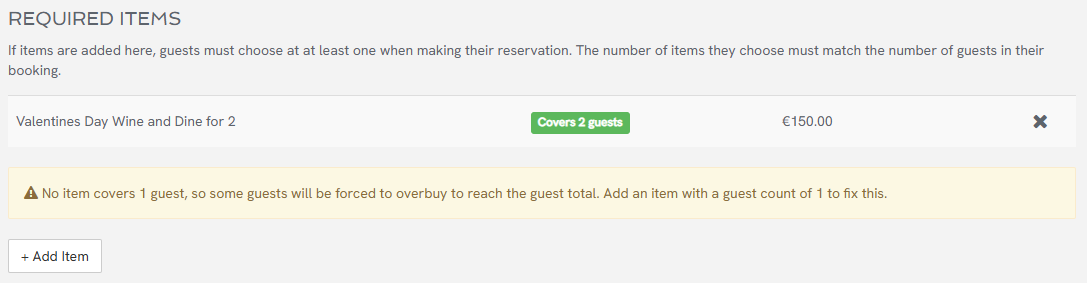
Ensure to include the correct Required Items here so that a guest does not have to 'overbuy' in order to cover their party size. For example if a guest is trying to book for 3 people, but you only offer Payment Items with a Guest Count (weighting) of 2, they will be forced to overbuy by at least 1 cover in order to complete their booking.
Optional Items are not required to be selected by the guest. In effect, optional items are a way to 'upsell' to customers as they make their booking. If only optional items are included, then the guest will be able to complete their booking without making any selection.

- 8
- (Optional) is this payment request related to an 'Experience?'
If this payment request relates to an Experience for which you want a dedicated marketing page, please select List on the Experiences page and complete the details including selecting a banner image.
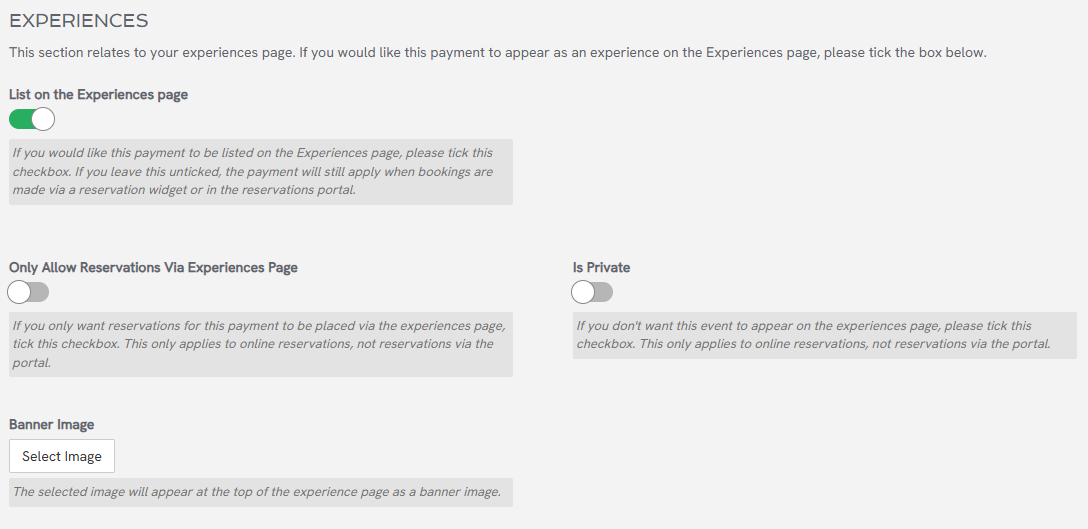
For help on how to upload an image, please click on the following Help Article:
- 9
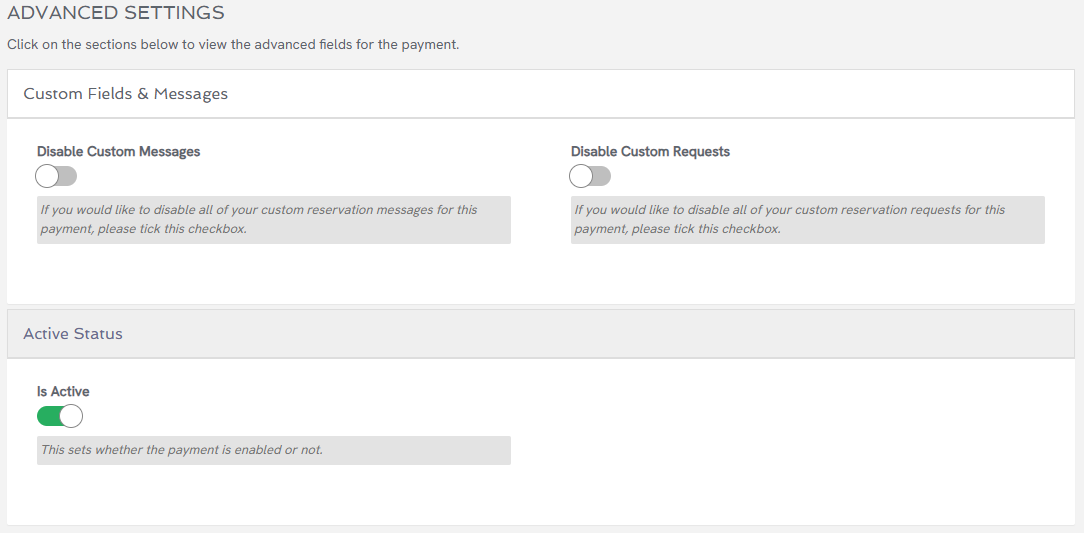
- If you would like to disable Custom Messages / Requests for this payment request tick the relevant checkbox (Under Advanced Settings.)
- 10
- Finally, please ensure to tick Is Active and click Save.
